Posts

Showing posts with the label purchase requsition

Fetch G/L and Cost center while creating PR

In this scenario GL account and cost center fetched to CMOD (includes)       DATA : li_items TYPE mmpur_accounting_list,                   lw_items TYPE mmpur_accounting_type,                   ls_acct  TYPE exkn.   DATA: l_f_refer TYPE REF TO if_purchase_requisition_item.   IF im_req_item IS NOT INITIAL.        CALL METHOD im_req_item-> if_acct_container_mm~get_items             RECEIVING                re_items = li_items.        IF NOT li_items IS INITIAL.           LOOP AT li_items INTO lw_items.              CALL METHOD lw_items-model->get_exkn                   RECEIVING                     r...

Display mode for fields G/L Account and cost center in ME51N

Image
                                                                              Refer -   Find meta field value                                                                                G/L account - SAKTO - 551 (meta field value)                                                                       ...

Pass value to search help(EKORG) under source of supply tab ME51N in SAP ABAP.

Image
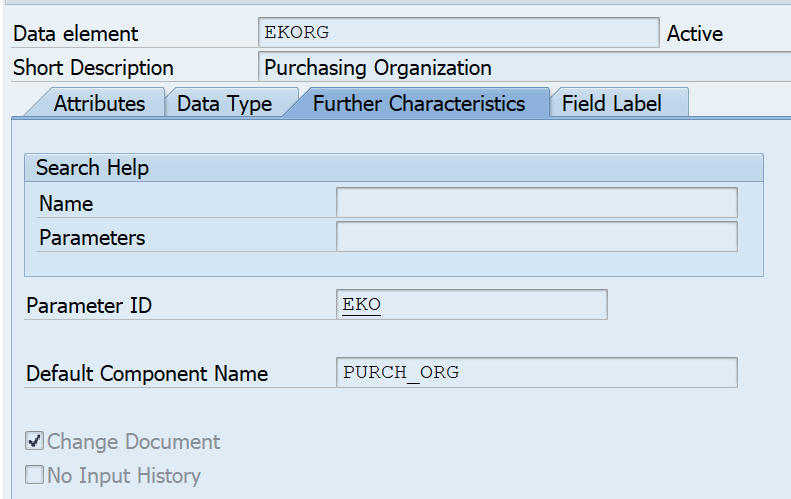
  * Find out the parameter id.     - Goto SE11.     - Give table name EBAN and click on display.     - Select the field and double click on data element.     - Click on further characteristics tab.      BADI - ME_PROCESS_REQ_CUST * Create implementation for this Badi.     - Go to SE18.     - Give Badi name and click on display.     - Click on implementation and click on create.     - Give implementation name . Give short text and save.     - Double click on process item method and write code.    method  IF_EX_ME_PROCESS_REQ_CUST ~ PROCESS_ITEM .      IF   sy - uname  =  'TRNGAB63' .        SET  PARAMETER  ID  'EKO'  FIELD  'B222' .      ENDIF .    endmethod . - Finally activate the implementation. Checking * Goto T-code: ME51N. * Give...

Create sub screen in ME51N in sap abap

Image
Ways to find customer-screen exit.         * Refer-   Ways to find the screen exit in ABAP.                               Purchase requisition package - ME                               customer exit - MEREQ001 Steps to implement screen exit. Step 1: Goto T-code CMOD. Step 2: Give project name and click on create. Step 3: Give short text and click on save. Step 4: Click on enhancement assignments. Step 5: Give enhancement name and click on save and click on components. Step 6: Double click on screen number and create screen (If screen number exits give another screen number). Step 7: Give short description , select sub screen under Dynpro tab and click on layout. Step 8: Design the screen like this. Step 9: Save sub screen and activate. Step 10:  Finally ...

Version 0 is not defined for fiscal year 2024 in ABAP.

Image
Version - 0 Controlling area - Y011 Step 1: Goto T-code OKEV . Step 2: Give the control area as it in error message. Press enter. Step 3: Select 0 version double click on 'Settings for Each Fiscal Year'. Step 4: Select latest year and click on copy method and give new year (2024). Step 5: Save.

Make field edibale PR IN ME51in ABAP.

Image
 I want to change Plant and Material group fields are editable. Step 1: Goto T-code SPRO . Step 2: Click on SAP reference IMG.                     Step 3:  - SAP Customizing Implementation Guide                       -  Materials Management                     -  Purchasing                     -  Purchase Requisition                     - Execute " Define Document Types for Purchase Requisitions".                     - Choose the field selection key for particular document type.                  - Click back. Step 4: Under ' Purchase Re...

Define Document Types for Purchase Requisition in ABAP.

Image
  Step 1: Goto T-code SPRO. Step 2:   IMG > Material Management > Purchasing > Purchase requisition > Define document types. Step 3:   Choose standard document type “NB” and then click on copy as option. Step 4:  Type : –  Rename the document type NB to new document type key as per the requirements. Document type description : –   Update the descriptive text of an document types for purchase requisition. Item Interval :  –  Item interval denotes the purchase requisition interval, if the item interval is 10 then the PR line item number will be 10, 20, 30, 40 and so on. If item interval is 1, then the PR line item number will be 1, 2, 3, 4 and so on. NoRgeInt : –  Update the  number range interval for purchase requisition  for internal assignment NoRge Ext : –  Update the number ranges interval key for purchase requisition for external assignment. Step 5: Save.

field is non editable while creating PR using code in ABAP.

Image
  Task : Agreement can be non - editable field.             Agreement tech name - KONNR 1. Find out the meta field value.        * Goto T-code - SE37 .       * Give FM name -   MEMFS_BUILD_MAPPING_PO_DOC .         * Click on display.         * Put breakpoint on first perform ( 12 line).         * Execute the FM.         * Give IM_APPLICATION name -  MMPUR_PR_DOC .         * Click on execute.         * Goto Desktop3(preferable) and give CH_MAPPING  in right side click on F6 button and check the data in  CH_MAPPING .          * Finally  meta field value for KONNR - ' 022 '. 2. Goto Se37 and give FM name ' MEREQBADI_FS_ITEM ' click on display. 3. Goto edit --> enhancement operations --> ...